TradingView Indicator Setup · V40
AurumGamma Pro HUD V40 for TradingView
Add the indicator once, then paste your daily levels and GEX profile in one click.
Set it up in six steps
Steps 1, 2 and 6 are done once; each trading day you only copy and paste (steps 3 to 5).
Add the script to your favorites
Press the button above, sign in to TradingView and click Add to favorites (or Use on chart) on the AurumGamma Pro HUD page.
Add it to your gold chart
Open a gold chart (Spot XAUUSD, COMEX Gold Futures GC1! or Micro Gold MGC1!), click Indicators → Favorites and choose aurumgamma.cloud Pro HUD V40. Its settings open on the DAILY DATA box.
Copy today’s data
On the gamma dashboard, press Copy for TradingView (or 📋 Copy Pine Script on the chart). The copied text holds the levels, the date they are for and the GEX profile.
Paste it into the indicator
Click inside the DAILY DATA box, press Ctrl+A then Ctrl+V (Cmd on Mac) and click OK. To open the settings later, double-click the indicator’s name at the top left of the chart → Inputs.
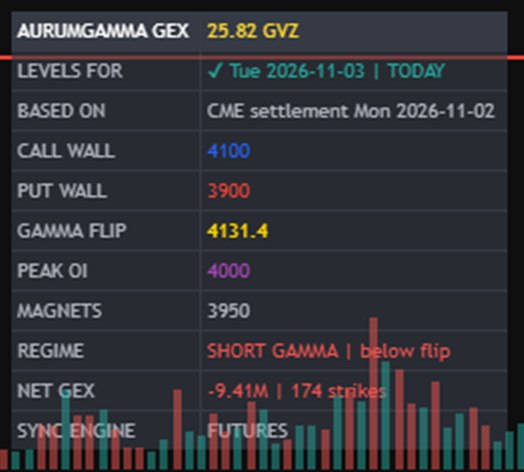
Check the date in the table
The table shows LEVELS FOR … TODAY in green when your levels are current. NOT TODAY in red means copy again: the dashboard updates each morning after the CME settlement (about 06:00 UTC). On weekends Monday’s levels show as NEXT SESSION.
Make room for the profile (once)
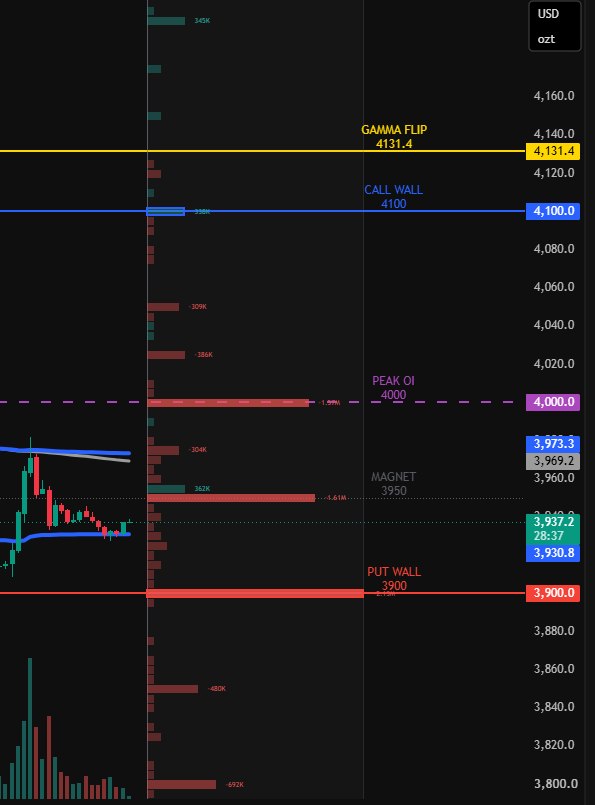
If the GEX profile or the level labels are cut off on the right, open Chart settings → Canvas → Margins and set Right to about 50 bars. Placement, panel width, colours and the table position are in the indicator’s GEX PROFILE and HUD TABLE settings.
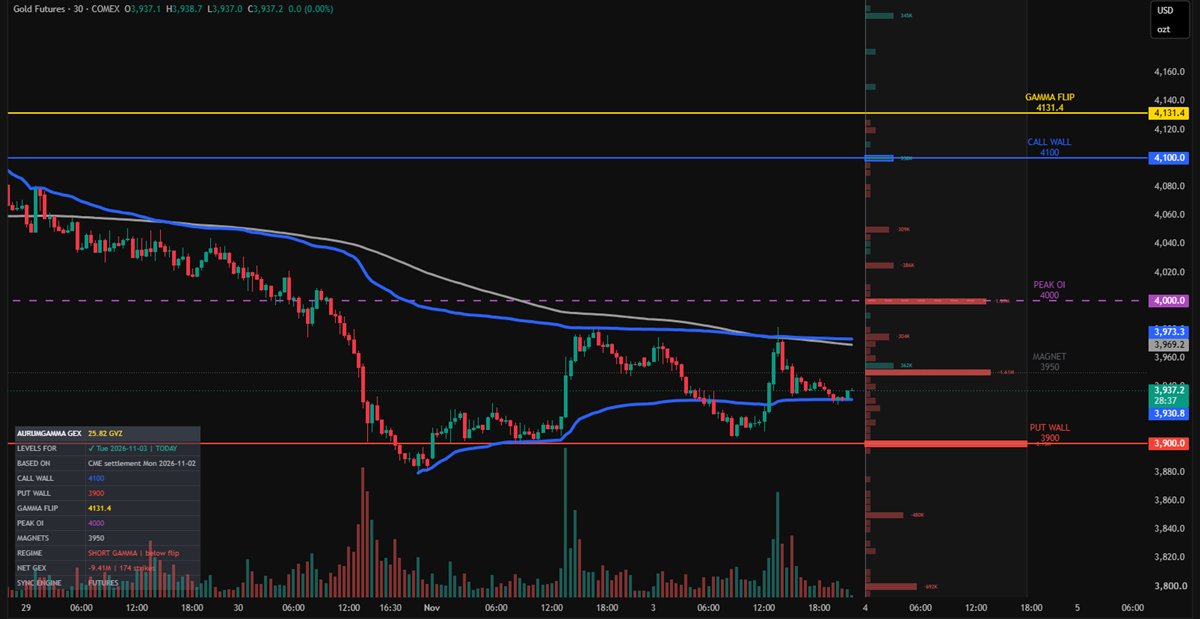
What you see on the chart
The two parts of the V40 HUD, up close.