Install Your X-Ray Vision in 10 Seconds.
No API keys and no broker integration. TradingView needs no download at all; the MetaTrader 5 and NinjaTrader 8 indicators install once from your account page.
 TradingView Pro HUD V40
 MetaTrader 5 EA
 NinjaTrader 8 add-on
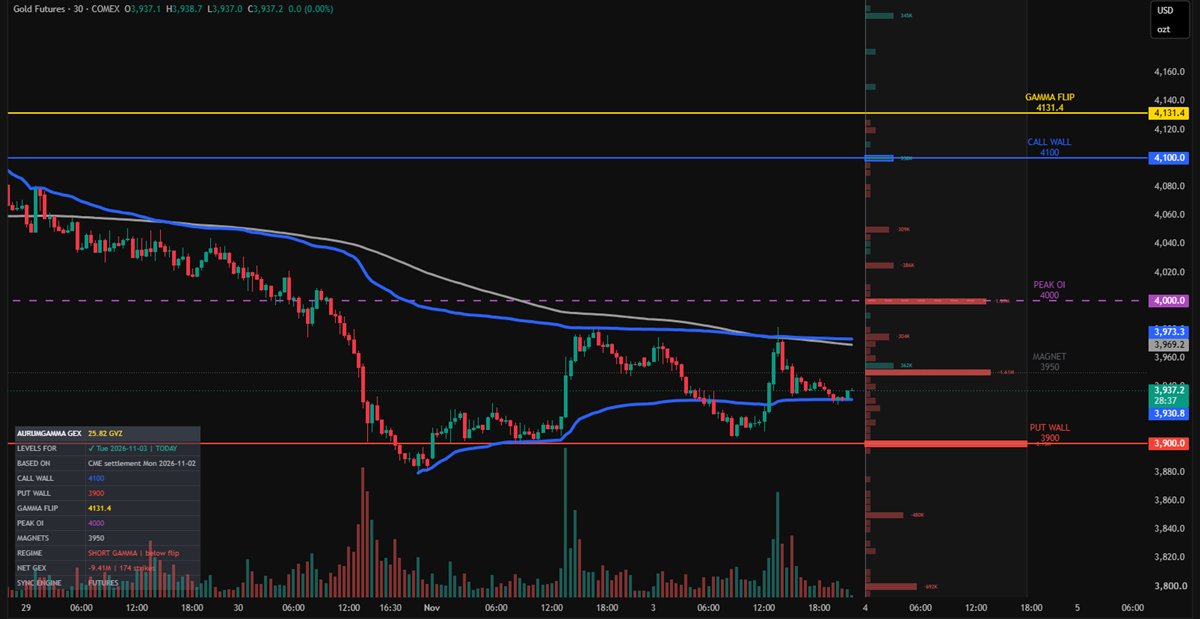
TradingView: Pro HUD V40
Levels, the date they are for and the GEX profile, pasted in one go.
Get the Indicator
Open the TradingView setup guide, open the AurumGamma Pro HUD V40 script on TradingView and click Add to favorites. Then add it from Indicators → Favorites to your XAUUSD, GC1! or MGC1! chart.
Copy the Levels
Launch the gamma dashboard and press Copy for TradingView in the top panel. Your clipboard now holds today’s levels, the date they are for and the GEX profile.
Paste into TradingView
In the indicator settings, click inside the DAILY DATA box, press Ctrl+A then Ctrl+V (Cmd on Mac) and click OK. The Call Wall, Put Wall and Gamma Flip lines snap to your chart.
Check the date
The table shows TODAY in green when your levels are current. The dashboard updates each morning after the CME settlement, so copy again once a day.
TradingView settings
Open the indicator’s settings (double-click its name on the chart). Only the DAILY DATA box needs you every day; everything else is optional.
| Setting | Default | What it does |
|---|---|---|
| 📋 DAILY DATA → paste box | empty | Paste what Copy for TradingView on the dashboard gives you: levels, the date they are for, the CME settlement and the GEX profile. |
| Automated sync config → Continuous Front Month Futures | COMEX:GC1! | Futures reference used for the spot conversion. No change needed. |
| Daily data → Volatility Index | CBOE:GVZ | Gold volatility index used for the expected-move context. |
| Timeframe auto-fit scale | On | Keeps every level in view on any timeframe. |
| Global visuals | Normal text, 5 bars ahead | Label size and how far right of the last candle the labels sit. |
| Call wall / Put wall / Gamma flip / Peak OI / Secondary magnets | Blue / red / gold / purple / gray | Color, line style and width of each level. |
| GEX profile → Show GEX Profile | On | Net gamma per strike next to your candles. |
| GEX profile → Placement | Side panel (right of candles) | Or over the candles at the right edge. |
| GEX profile → Strikes shown | All strikes received | Or only strikes within ± % of price (4% by default). |
| GEX profile → Gap / Panel width | 3 bars / 35 bars | Space between the last candle and the profile, and the profile width. |
| GEX profile → Bar thickness | 0.75 | Bar height as a share of the strike spacing. |
| GEX profile → Value labels | Largest 12 strikes | How many of the biggest strikes show their value (0 = none). |
| GEX profile → colors | Green +, red − | Positive and negative GEX colors, panel background, value text size. |
| HUD table → Position / Text size | Bottom left / Small | Where the levels table sits and its size. |
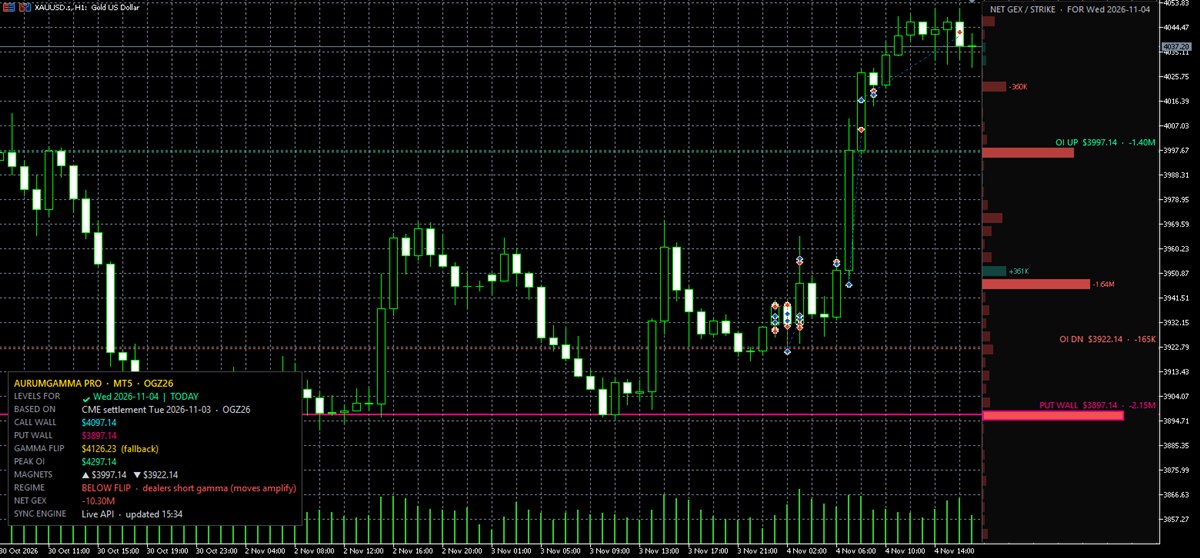
MetaTrader 5 (MT5) EA 2.00 Setup: GEX Profile + Gamma Levels
Prefer executing directly on desktop MetaTrader 5? AurumGamma_V2.ex5 fetches the CME gamma levels and plots them over your XAUUSD candles with zero manual math.
Whitelist Your MT5 Account Login ID
Log in and open the MT5 section of your account page. Enter your numeric 5–12 digit MT5 Account Login ID and click Save & Whitelist. The whitelist activates instantly. Your pass sets how many accounts you can link: 3-Months 1, Annual 2, Lifetime 3.
Download & Install AurumGamma_V2.ex5
Download AurumGamma_V2.ex5 from the same MT5 section. In MetaTrader 5, click File → Open Data Folder, open MQL5 → Experts and paste the file. Right-click Expert Advisors in the Navigator panel and click Refresh.
Enable WebRequest in MT5
Open Tools → Options → Expert Advisors, check “Allow WebRequest for listed URL”, click + and add https://aurumgamma.cloud. Click OK.
Attach to XAUUSD & Trade
Drag AurumGamma_V2 onto your XAUUSD chart and click OK. The EA draws the Call Wall, Put Wall, Zero Gamma Flip, peak OI and OI magnets, the GEX profile against the price scale with the level names inside it, and the levels table (bottom left) with the date check. It makes room right of the candles by itself and adapts its colors to dark or light templates. On an older version, remove the old AurumGamma EA and attach AurumGamma_V2. It is visual only: it contains zero automated trading logic. On a funded account, check your prop firm's rules on indicators.
MetaTrader 5 settings (EA inputs)
Shown in the Inputs tab when you attach the EA, or later with a right-click on the chart → Expert list → Properties. The defaults work on any spot gold chart.
| Setting | Default | What it does |
|---|---|---|
| Broker Price Offset (+/- USD) | 0.0 | Shifts every level if your broker’s gold price differs from spot (e.g. +0.50). |
| Auto-Refresh Interval (Minutes) | 30 | How often the EA loads the levels again (minimum 5). |
| Show Corridor OI Up/Down Magnets | true | The two OI strikes closest above and below the price. |
| Show Levels Table (HUD) | true | The table with the date check, every level, regime and net GEX. |
| Levels Table Position | Lower left | Corner of the chart for the table. |
| Allow Non-XAU/GOLD Ticker Symbols | false | Turn on if your broker names gold differently (e.g. a suffix the EA does not recognise). |
| Auto-adapt colors for Dark / Light Chart Themes | true | Picks readable colors for dark or white chart templates. |
| Call Wall / Put Wall / Zero Gamma Flip / High OI / Corridor OI colors | Aqua / pink / gold / green / coral | Colors of each level. |
| Primary Wall Line Width (1-5) | 2 | Line width of the walls and the flip. |
| Show GEX Profile | true | Net gamma per strike against the price scale, with the level names inside it. |
| GEX Profile Width (pixels) | 230 | Width of the profile. |
| GEX Bar Thickness | 0.75 | Bar height as a share of the strike spacing (0.2-1.0). |
| GEX Value Labels on Largest Strikes | 10 | How many of the biggest strikes show their value (0 = none). |
| GEX Positive / Negative Color | Green / red | Colors of positive and negative GEX. |
| Make Room Right of Candles for the Profile | true | Sets the chart shift so the candles stop before the profile. |
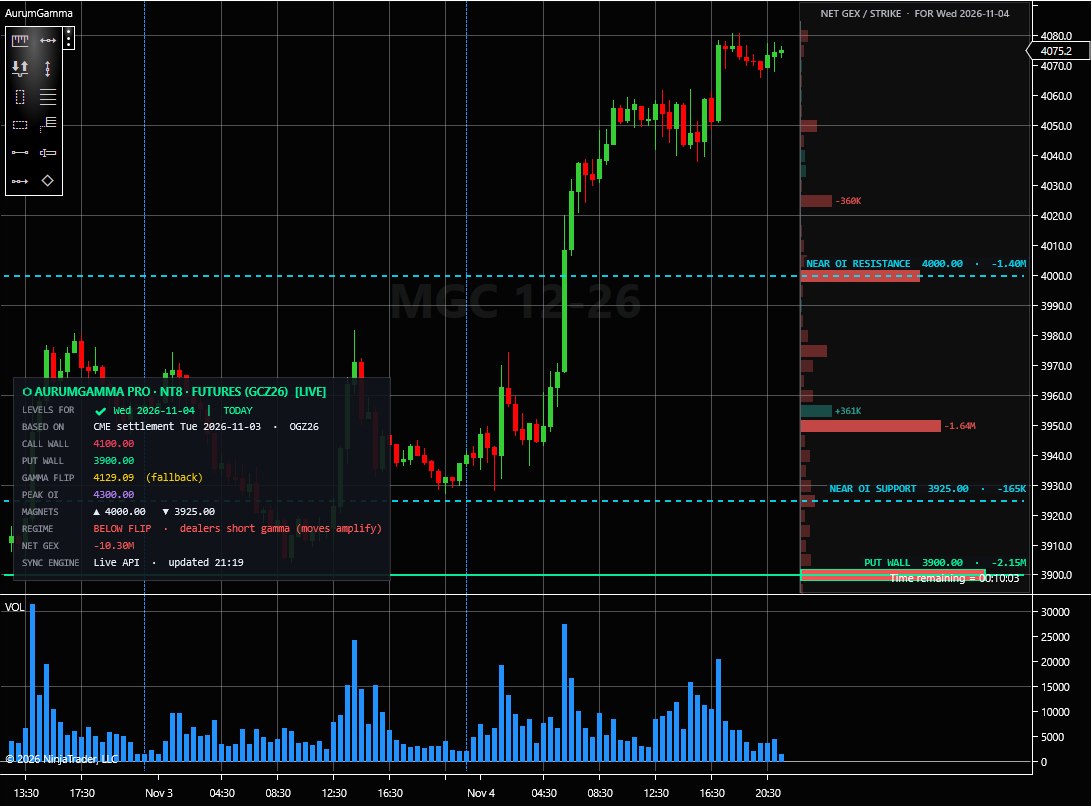
NinjaTrader 8 (NT8) Indicator 2.00 Setup: Gold Futures & Spot
Trade COMEX Gold Futures (GC, MGC, QO, YG) or Spot (XAUUSD) on NinjaTrader 8? The native C# SharpDX indicator (AurumGammaNT8_V2.zip, indicator 2.00 with the GEX profile) imports in seconds and binds your PC on first chart load.
Download Your Stamped AurumGammaNT8_V2.zip
Sign in and open the NinjaTrader 8 section of your account page. Click Download AurumGammaNT8_V2.zip. The archive is stamped with your personal sync token.
Import NinjaScript Add-On in NinjaTrader 8
In the NinjaTrader 8 Control Center, open Tools → Import → NinjaScript Add-On... and select AurumGammaNT8_V2.zip. NinjaTrader compiles and registers the indicator automatically. Updating from an older version? Import the new ZIP over the old one and re-add AurumGamma on your chart.
Attach to GC / MGC / XAUUSD (Zero-Touch Auto-Bind)
Open a GC, MGC, QO, YG or XAUUSD chart, press Ctrl+I (Indicators) and double-click AurumGamma. On first load the indicator reads NinjaTrader.Cbi.License.MachineId and binds that PC to your license—no keys to copy. Your pass sets how many PCs can be bound: 3-Months 1, Annual 2, Lifetime 3. Moving to a new PC or VPS? Paste its Machine ID (Help → About) in your account page to transfer a binding.
NinjaTrader 8 settings (indicator properties)
Shown when you add AurumGamma in the Indicators window (Ctrl+I), or later by selecting it there. The defaults work on GC, MGC and XAUUSD charts.
| Setting | Default | What it does |
|---|---|---|
| 1. Pricing Mode | AutoDetect | Futures strikes on GC / MGC / QO / YG, spot-converted levels on XAUUSD. Force one mode if your symbol is not recognised. |
| 1. Spot Broker Offset ($) | 0.0 | Shifts the levels on spot charts if your broker’s gold price differs. |
| 1. Futures Calendar Spread Offset ($) | 0.0 | For a futures month other than the one the options settle on; the levels table warns when the months differ. |
| 1. Cloud Refresh Interval (Minutes) | 15 | How often the levels load again (5-30). |
| 2. Show Near-Spot OI Magnets | true | The two OI strikes closest above and below the price. |
| 2. Show Top-Left Status HUD | true | Shows the levels table (date check, levels, regime, net GEX). |
| 2. Levels Table Position | BottomLeft | Bottom left or top left of the price panel. |
| 2. Allow Non-Gold Symbol Override | false | For custom broker tickers that do not use GC / MGC / XAUUSD names. |
| 2. Auto-Contrast Chart Theme Colors | true | Readable colors on dark or light chart backgrounds. |
| 2. Primary Wall Line Width | 2 | Line width of the walls and the flip (1-5). |
| 3. Show GEX Profile | true | Net gamma per strike against the price scale, with the level names inside it. |
| 3. GEX Profile Width (pixels) | 230 | Width of the profile. |
| 3. GEX Bar Thickness | 0.75 | Bar height as a share of the strike spacing (0.2-1.0). |
| 3. GEX Value Labels | 10 | How many of the biggest strikes show their value (0 = none). |
| 3. Auto Right Margin | true | Widens the chart’s right margin so the candles stop before the profile; restored when you remove the indicator. |
| 3. GEX Positive / Negative Color | Green / red | Colors of positive and negative GEX. |
Built-in live COMEX chart (zero setup)
Don’t want to use TradingView, MT5 or NT8?
The AurumGamma gamma dashboard has its own live candlestick chart streaming continuous COMEX Gold Futures (GC=F). Switch between 5 timeframes (15M, 30M, 1H, 4H, 1D), toggle 1-click Corridor Framing, or drag the price and time axes to see price reacting at the Call and Put walls.
Keep going
Understanding the matrix
What the call wall, put wall, gamma flip and COT bias mean, in plain words.
Read the FAQ →All indicators
TradingView, MetaTrader 5 and NinjaTrader 8 side by side, and what each pass includes.
See the indicators →Today’s levels
The gamma dashboard with the live chart, the strike profile and the AI read.
Open the gamma dashboard →